
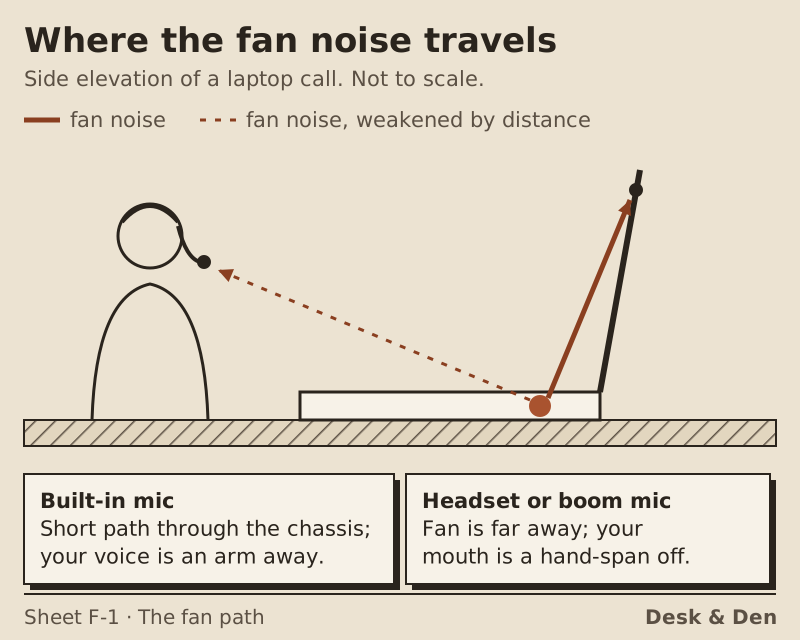
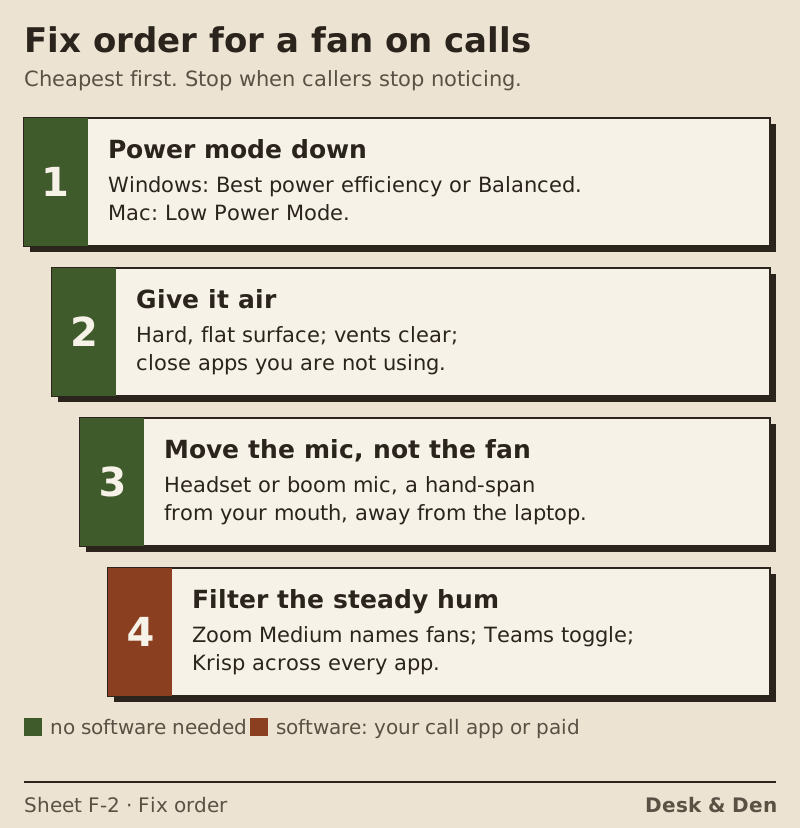
Laptop fan noise on calls has a simple cause: the fan and the built-in microphones live in the same small box, so the mic hears the fan from a few inches away while your voice arrives from an arm's length. The fix order is short. Turn the power mode down so the machine makes less heat, give the laptop room to breathe, move the microphone to your mouth with a headset or a boom mic, and only then let a noise filter clean up the steady hum that is left. Steady fan noise is one of the easier sounds for call software to remove, which makes that last step more forgiving than it is for a barking dog.
This is written for people taking calls from a laptop at a desk at home. If the fan is grinding, clicking or rattling rather than whooshing, skip ahead to the edge cases, because that is a hardware fault and no setting will fix it.
Why the built-in mic hears the fan so well
Sound weakens as it spreads out, so distance decides what a microphone hears loudest. A laptop's built-in mics sit somewhere around the keyboard, the hinge or the top of the screen. The fan sits in the base, pulling air through vents a short way off. Your mouth, meanwhile, is usually the length of your forearm and a bit more from any of those mics. The result is a recording where the fan is close and you are far, and every time the processor works harder, the fan spins up and the balance tips further its way.
There is a second path too. A fan does not only make airborne noise; it can shake the chassis a little, and a mic mounted in that same chassis picks up some of that as well. Resting the laptop on a soft surface tends to make both worse, because the vents get blocked, the machine heats up and the fan works harder. None of this shows up in the spec sheet, but it is why the same laptop can sound fine at a table and noisy on a sofa cushion.
Power and thermal settings that quiet the fan
The cheapest fix is less heat. A fan speeds up because the processor and graphics chip are warming up, so anything that lowers their workload during a call lowers the fan with it. Both major desktop systems give you a switch for that. Paths below were checked against Microsoft's and Apple's support pages on 9 October 2026.
Windows 11
Open Start, then Settings, then System, then Power & battery, and find Power mode. The three choices are Best power efficiency, Balanced and Best performance. For calls, Balanced or Best power efficiency is usually the right pick. Best performance tells the machine to run hot when it can, which is the opposite of what you want while you are talking. Some laptop makers add their own fan or thermal profiles in a separate utility; if yours has a quiet profile, it is worth trying alongside the Windows setting.
macOS
On a Mac laptop, open System Settings and choose Battery. There you will find Low Power Mode, which Apple describes as reducing energy usage, and, on 14-inch and 16-inch MacBook Pro models, an Energy Mode setting with Low Power, Automatic and High Power. For a call, Low Power is the quieter choice; High Power is meant for sustained heavy work. Desktop Macs keep their equivalent under System Settings, then Energy.
Close what you are not using
Video calls already ask a lot of a laptop. Browser tabs playing video, a cloud backup running in the background or a big file sync can push the processor hard enough to spin the fan up mid-sentence. Closing them before the call starts is free. Our pre-call checklist folds this into a one-minute routine.
Stands, placement and an external mic
Give the laptop air. A hard, flat surface keeps the intake vents open; a bed, a cushion or your lap blocks them. A laptop stand helps twice over: air moves more freely underneath, and the screen comes up to eye level, which tends to keep you sitting back from the keyboard rather than hunched over it.
Then move the microphone. This is the step that changes the balance the most, because it attacks the distance problem directly. A wired or wireless headset with a boom holds the capsule about a hand's width from your lips and well away from the fan, so your voice is suddenly the loudest thing it hears. A desk mic on a small arm does the same job if you would rather not wear anything. Our comparison of a headset versus a desk mic weighs the two, and the mic placement sheet covers where to aim it so the laptop sits behind the mic's quiet side.
Once an external mic is in use, select it as the input in your call app's audio settings. Laptops sometimes fall back to the built-in mic after a restart or an update, and the fan comes straight back with it.
Software: why fan hum is the easiest noise to remove
Noise suppression works by telling speech apart from everything else. A fan is close to the ideal case for that: it is steady, it does not change much from second to second, and it sounds nothing like a voice. Sudden, speech-like sounds such as a television or a colleague are much harder. That is why a filter that struggles with background chatter can make a fan disappear almost completely.
You may already have a capable filter:
- Zoom. In Settings, then Audio, under Microphone modes, Noise removal has a Background noise suppression dropdown with Auto, Low, Medium and High. Zoom's own description of Medium names "fans, pen tapping, and so on", so it is a sensible setting for this exact problem. Zoom also notes that High may increase CPU use, which on a hot laptop can mean more fan; stay at Medium unless you need High for background voices.
- Microsoft Teams. In the new Teams for desktop there are no levels, just one switch: open Settings and more, then Settings, then Devices, where noise suppression starts out turned on.
- Your computer. Windows 11's Voice Clarity needs no extra hardware and works by itself in apps that use the system's communications mode, provided the PC maker's driver does not already supply that processing. On macOS 27, open the Video item in the menu bar during a FaceTime call, or in another app with Mic Mode support, and pick Voice Isolation.
- Krisp. A separate app that installs a virtual microphone, so it cleans the signal before any call app sees it, and processes audio on your own machine. It runs on a Mac with macOS 14 Sonoma or newer, or on a PC with a 64-bit edition of Windows 10 or 11. It is paid once the 7-day, card-free trial ends: Core is $8 per user each month when paid yearly or $16 when paid month by month, according to Krisp's pricing page on 9 October 2026.
A filter works best on a signal that is already reasonable. With the mic close to your mouth, it has very little fan to remove and very little guessing to do, so your voice comes through natural. With the laptop's own mic across the desk, it has to carve your voice out of a much louder hum, and that is when filters start to sound watery. Our guide to microphone noise-cancelling software covers how to test one on your own desk before you commit.
Edge cases
A fan that grinds, clicks or rattles
That is a mechanical fault, not a settings problem: a failing bearing, a loose part or debris in the fan. Contact the laptop maker's support or a repair shop. Software can make a grinding noise less obvious on a call, but the fan still needs attention.
Fan noise only during calls
Video calls are hard work for a laptop, especially with a virtual background, a big gallery view or screen sharing. Turning off the virtual background or switching to a smaller view lightens the load. The fan winding down when you hang up is normal.
A laptop that is always loud
Dust in the vents builds up over time and makes the fan work harder for the same cooling. Follow the maker's own support guidance for cleaning your model, and check its warranty terms before opening anything.
The fan is quiet but callers still complain
Then the noise is probably something else in the room. Our ordered list of ways to reduce microphone background noise works through the other usual suspects.
Asked at the bench
Why does my laptop fan get loud on video calls?
Video calls keep the processor busy encoding and decoding video, and heat makes the fan spin up. Lower the power mode, close other heavy apps, keep the vents clear and turn off effects such as virtual backgrounds.
How do I stop my mic picking up my laptop fan?
Move the microphone away from the laptop and toward your mouth with a headset or a desk mic, then turn on your call app's noise suppression. Zoom's Medium setting is described by Zoom as suited to fans.
Can noise suppression remove fan noise completely?
Steady fan hum is among the easiest sounds for noise suppression to remove, and many filters handle it well. Results are best when the mic is close to you, so there is less fan in the signal to begin with.
Does Low Power Mode make a MacBook quieter?
Apple describes Low Power Mode as reducing energy usage, and less energy generally means less heat for the fan to move. It is worth switching on for calls, especially on battery.
Which Windows power mode is quietest?
Best power efficiency uses the least power, with Balanced in the middle and Best performance at the top. For calls, Balanced or Best power efficiency is the practical choice.